

The idea
Blocks, the timeline, and why everything is a block
Everything you plan in Tempo is a block. A block has a title, a type, a start time and an end time. A task is a block. A gym session is a block. Lunch, a nap, a run, a project, a habit, a mood check-in: all blocks.
Blocks sit on a timeline for the day, in the order they happen. The day runs from top to bottom. The time of day gives each part of the timeline its colour: warm at dawn, bright at noon, pink at dusk, blue at night. That colour strip is the day arc at the top of Today.
Blocks can hold other blocks. A gym block holds exercises. A project holds tasks. A checklist holds items. A routine holds steps. When you open a block you see what is inside it, and you tick those inner blocks off one by one.
Because every entity is a block, the same actions work everywhere. You can mark anything done, move anything, repeat anything, put a reminder on anything, and ask the assistant about anything.
Your data stays on your phone. There is no Tempo account and no Tempo server.
Today
The main screen: date, day arc, streaks, Sol, your blocks
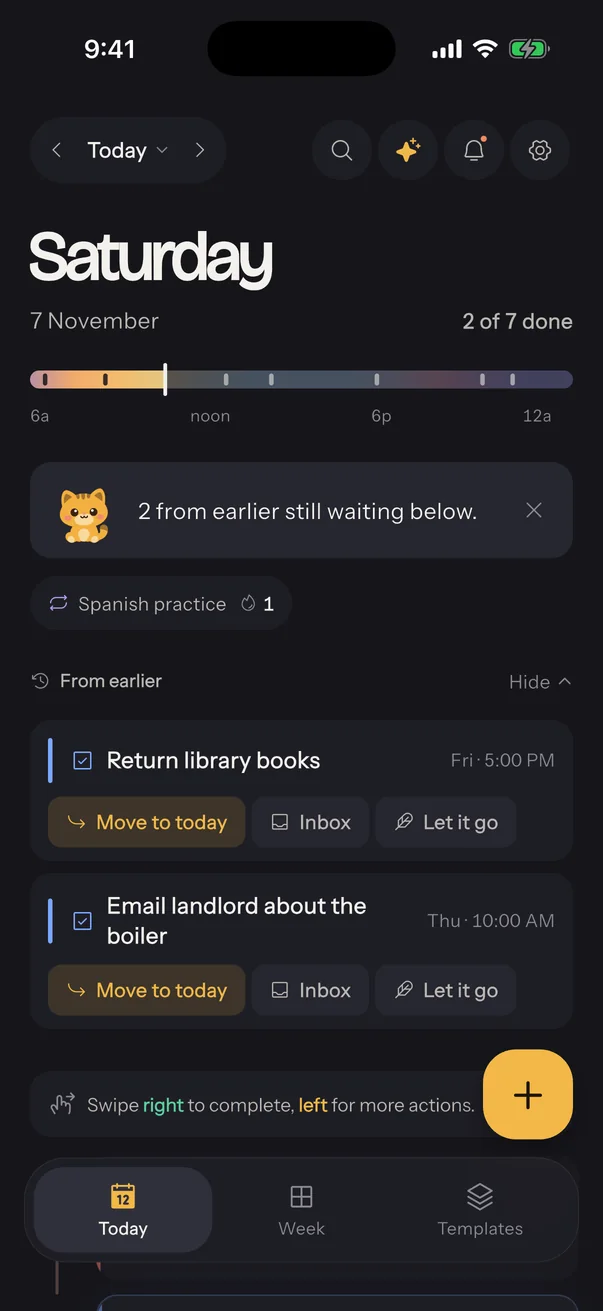
Today is the first tab and the screen you will use most.
Date pill. The pill at the top left shows which day you are looking at. The arrows step one day back or forward. Tap the pill to pick any date. When you are on another day, a "Back to today" link appears under it.
Header. The day name is large, with the date below it and a count like "3 of 8 done" on the right. The count only includes top-level blocks, not the exercises or tasks inside them.
Day arc. The colour strip under the header is the day from 6 am to midnight. Each tick is a block. The white line is the current time, so you can see at a glance how much of the day is behind you.
Streak chips. Repeating habits with a streak going show as small chips with a flame and a number. Tap one to open the habit.
Sol's card. Sol, the cat, says one useful thing about the day: a block that ran past its time, an overlap, a streak at risk, no lunch in the plan, or what is next. In the evening Sol counts what is still open and offers to move it or let it go. Tap the cross to dismiss the card for that part of the day. See the Sol section for more.
From earlier. Undone blocks from previous days wait here with three choices: move to today, send to the Inbox, or let it go. Hide and show the list with the arrow.
Inbox. Blocks with no time. Tap one to give it a slot today.
The timeline. Each row is a block card with its time on the left, a colour stripe for its type, the title, the subtitle, tags, and a circle to mark it done. The block that is happening now is highlighted.
Swipe right on a block to mark it done. Swipe left for more actions. Long press a block to open its action sheet: focus, edit, reschedule, move up or down, snooze, skip today, duplicate, delete.
The plus button at the bottom right adds a block. Long press it to describe the block to the assistant instead.
Top right icons: search, the assistant, notifications, settings.
Adding a block
The New block sheet, when presets, Advanced, and Sol reading your text
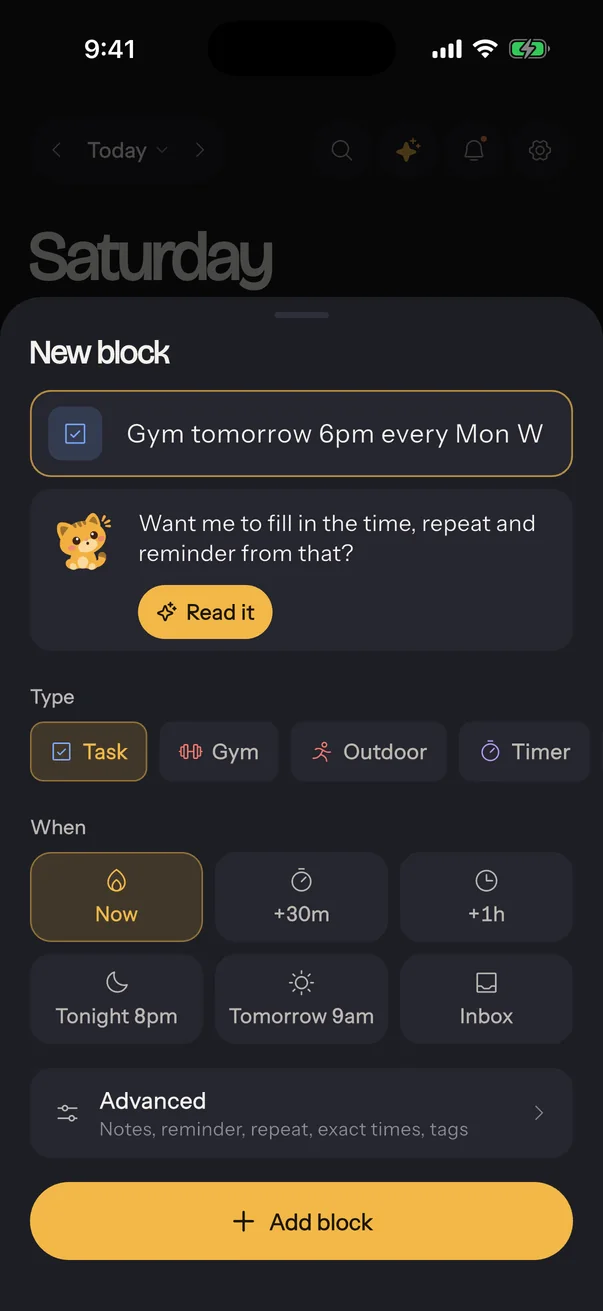
Tap the plus button and the New block sheet opens with the keyboard ready.
Title. Type what you are doing. If you type a sentence with a time or a repeat in it, such as "gym tomorrow 6pm every Mon Wed Fri remind me 10 min before", Sol offers to read it. Tap Read it and Sol fills the time, repeat, reminder and notes from your words, and cleans the title. Sol only does this when the assistant is set up. You can still tap a time tile afterwards to override what Sol read.
Type. The row of chips picks what kind of block this is. Task is the default. The type decides what the block can do when you open it, and its colour on the timeline.
When. On today the grid offers Now, +30m, +1h, Tonight 8pm, Tomorrow 9am and Inbox. On another day it offers clock times on that day. Now is selected by default. Inbox makes a block with no time, for things you want to capture without scheduling.
Advanced. Opens the full editor with everything carried over. There you set exact start and end times, notes, the reminder, the repeat rule, how long it repeats, and tags.
Add block saves it and closes the sheet. The block appears on the timeline at once.
Block types
What each type does when you open it
The type changes what a block can hold and what its screen shows.
- Task. The plain block. Mark it done, add notes, give it a reminder.
- Checklist. Holds items you tick off one by one. Progress shows on the card.
- Project. Holds tasks. Each task is a block of its own with notes and done state. Good for anything with more than one step.
- Routine. Holds steps in order, for mornings and evenings. A step can be a timer, so "stretch for 10 minutes" counts down when you open it.
- Gym. Holds exercises. Each exercise has sets with weight and reps, a rest timer, history and a muscle map. The workout player runs the whole session. See the Gym section.
- Timer. A focus or Pomodoro block with its own length. Start it from the block or from Today; it runs in a floating pill on every screen.
- Outdoor. A walk, run, hike or ride. Tracks your route, distance and pace with the screen locked.
- Habit. A repeating block that builds a streak. Streaks show as chips on Today and in the weekly review.
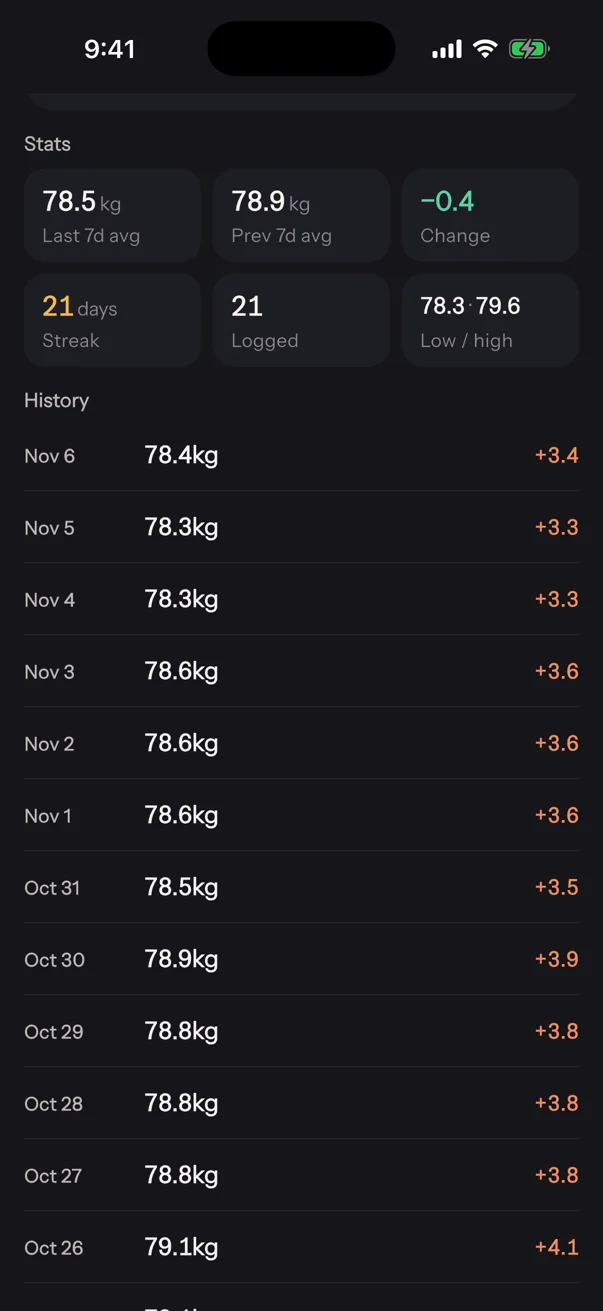
- Tracker. Log a number each day, such as weight or water. Shows a trend. Can fill from Apple Health or Health Connect.
- Mood. A quick check-in on how the day felt. Feeds the weekly review.
- Meal. Breakfast, lunch, dinner. Sol notices when a day has no lunch.
- Note. A block for writing. Notes support Markdown: headings, bold, lists, links.
- Goal. A block with an end date and a timeframe, such as "read 12 books by June". Shows how far along the timeframe you are.
- Custom. A blank type for anything else.
You can change the colour of each type in Settings under Categories.
Inside a block
The detail screen, notes, children, the assistant button
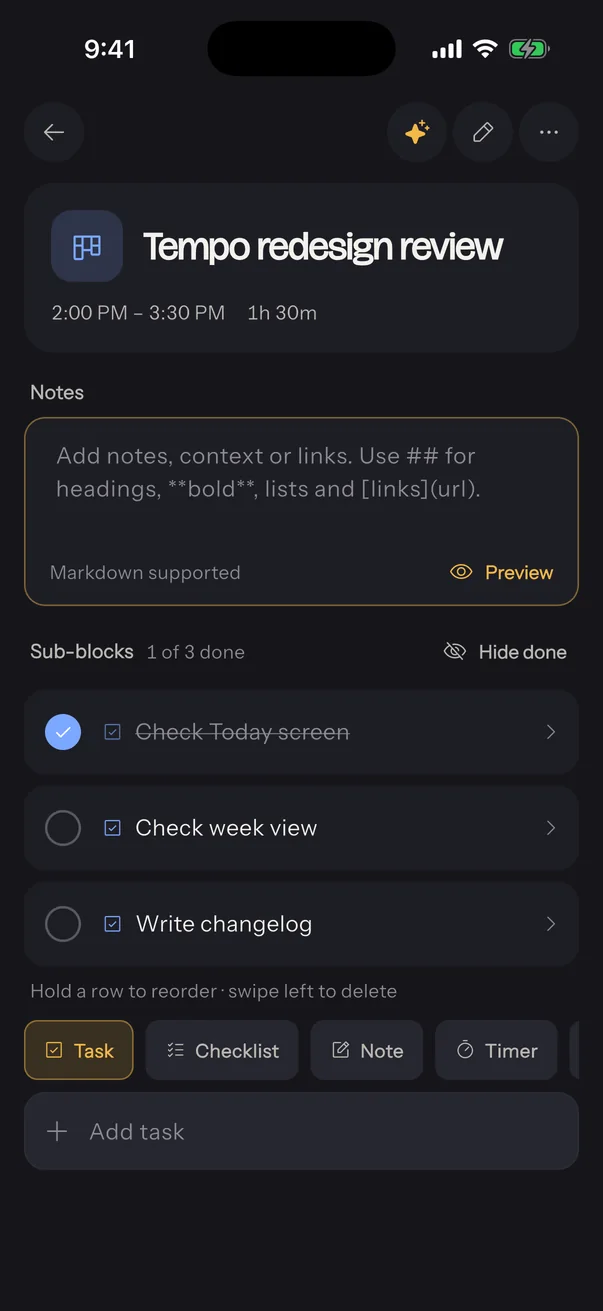
Tap any block card to open it.
Header card. The icon, title, subtitle, time range and length. The pencil opens the editor. The three dots hold duplicate, skip, delete and the rest.
Done button. The big button marks the block done or not done. For repeating blocks it marks only this day's occurrence.
Children. Checklists, projects, routines and gym blocks show their inner blocks here. Tap the plus at the bottom of the list to add one. Long press and drag to reorder. Swipe an item to delete it.
Notes. Every block has a notes area. It renders Markdown, so you can write headings, bold text, bullet lists, links and code. Tap to edit.
Timeframe. Goals and repeating blocks show a panel with the series start, the end date, and how far through you are. Tap it to change the end date.
History. Trackers, habits and exercises show their past values in a sheet.
The sparkle button at the top opens the assistant with this block in focus. Anything you ask then applies to this block first.
Gym
Exercises, sets, rest timer, the workout player, history, Sol the coach
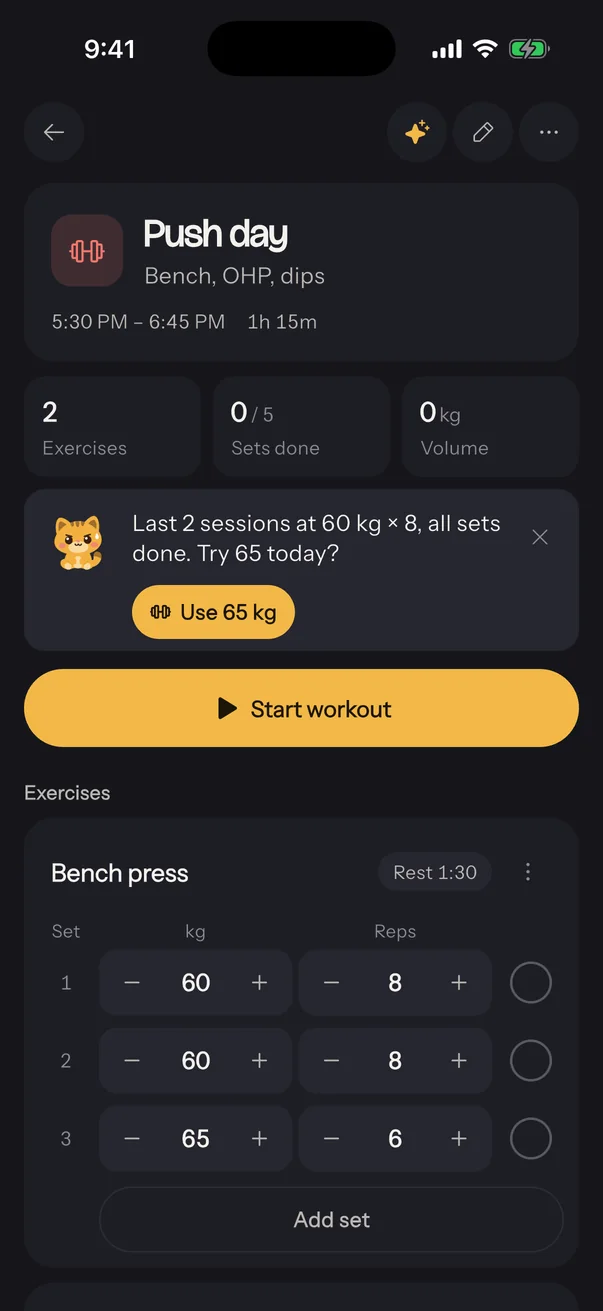
A gym block is a workout. Open it to see the summary tiles: exercises, sets done, and total volume.
Adding an exercise. Tap Add exercise. The picker lists exercises by muscle group with a small muscle map on each. Pick one and it arrives with sets copied from the last time you did that lift, or one empty set if it is new. Tap the info icon on an exercise to see its muscle map, description and default rest.
Sets. Each row is a set with weight and reps. Use the plus and minus buttons to adjust, or tap the number to type. Tap the circle on the right to mark the set done. Swipe a set left to delete it. Add set adds another row.
Rest timer. When you mark a set done, a rest countdown starts under the exercise. Pause it, add 30 seconds, change the length with the gear, or dismiss it with the cross. If you leave the block, the rest keeps counting in a floating pill on every other screen, and the phone buzzes when it ends even when locked.
Workout player. Start workout runs the session as a sequence: a short get-ready countdown, each set, then the rest. The player shows the current exercise, the set number, weight and reps you can adjust, and the next thing up. Mark a set done, skip forward or back, or add 30 seconds to a rest. Tap the minimise button to leave the player running in a floating pill and come back to it from any screen. The cross closes it.
History. Tap an exercise's menu and choose History to see every session of that lift, the best set, the estimated one-rep max trend, and personal records.
Sol the coach. When you have done the last two sessions of a lift at the same weight with every set complete, Sol says so on the gym block and offers the next plate. Tap Use to write the new weight into the planned sets. This is simple arithmetic from your own log, not coaching: only add weight when it feels right, keep good form, and stop if anything hurts.
Repeating workouts. A gym block that repeats keeps one plan and logs each day's sets separately, so Monday's Push Day history does not overwrite Thursday's.
Timers and focus
Focus from any block, timer blocks, the floating pill
Focus on a block. Long press any block on Today and choose Focus. A 25-minute timer starts for that block, or the block's own length if it is a timer block. You stay on Today and the timer runs in a floating pill above the tab bar.
The pill. It shows the block name and time left, with pause and a stop button. Tap the pill to open the block. Tap stop to choose Finish and log, which records the time as a session on the block, or Stop without logging.
Timer blocks. A timer block has its own length, set with the gear on its screen. Start it from the block's big dial or from Today. Presets go from 5 minutes to an hour, and you can add minutes while it runs. When it ends you hear the alert sound and feel a vibration, and if the app is closed you get a notification.
Sessions. Every finished timer is logged on its block, so a project shows how much focus time it has had.
Settings under Timers and alerts control the sound, the sound in silent mode, vibration, background notifications, and workout cues such as the 3-2-1 ticks.
Outdoor
Walks, runs, hikes and rides with route tracking
An outdoor block records where you went.
Open the block and tap Start tracking. Tempo asks for location permission the first time. Recording continues with the screen locked, so a long walk is not cut short.
The player shows elapsed time, distance, pace and a live map of your route. Pause when you stop, resume when you move on, and finish when you are done. The route, distance, moving time, pace, elevation gain and a calorie estimate are saved on the block.
Past routes are listed on the block. Tap one to see it on the map.
Location is used only while recording. Routes stay on your phone and are never sent to the assistant.
Repeat, reminders and notifications
Recurrence rules, end dates, reminders, quiet hours
Repeat. In the editor choose Once, Daily, Weekly or Monthly. Weekly shows a row of weekdays to pick. The block then appears on every matching day as one series with one plan.
Repeat until. Choose Never, 1 month, 3 months, 6 months, 1 year, or pick a date. The timeframe panel on the block shows how far through you are.
Editing a repeating block changes every future day. Marking it done, skipping it, or snoozing it affects only that day.
Reminders. Each block can remind you before it starts: at the start, 5, 10, 15, 30 or 60 minutes before, up to three of them. Turn on Keep reminding me and the reminder repeats every 10 minutes until the block is done. The default for new blocks is set in Settings under Notifications, and notes, trackers and mood check-ins stay quiet by default.
Quiet hours. Set a window in Settings during which no reminders fire.
Notification actions. A reminder notification has Done and Snooze buttons, so you can act without opening the app.
Permission. Tempo asks for notification permission once. If you declined, the Notifications row in Settings takes you to the system settings to turn it on.
Week, heatmap and review
The week tab, the year heatmap, and the weekly review with Sol
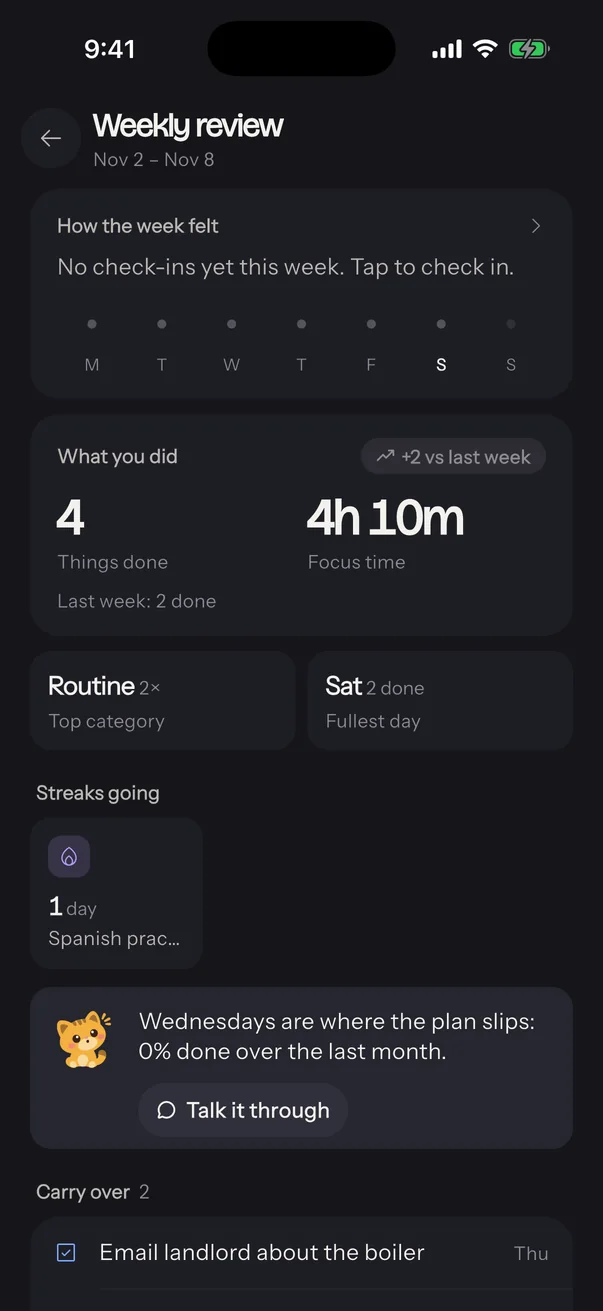
Week. The second tab shows seven days side by side with every block in its slot. Tap a block to open it. Tap a day header to jump to it on Today. The icons at the top open the weekly review and the year heatmap.
Year heatmap. A square for every day of the past year, coloured by how many blocks you completed. Tap a coloured day to open it on Today. Empty days are not tappable.
Weekly review. A page for the past week: how the week felt from your mood check-ins, what you did compared with last week, focus time, the top category, the fullest day, streaks that are going, and the blocks you did not get to.
Sol's insight. Sol reads the week and says the one thing the numbers do not: the weekday that keeps slipping over the last month, a trend, or your longest streak. Fix it with Sol opens the assistant with a suggestion ready to turn into real changes.
Carry over. The review lists undone blocks from the week with a button to reschedule them with the assistant.
Templates
Reusable days and weeks, the gallery, customising on use, saving your own
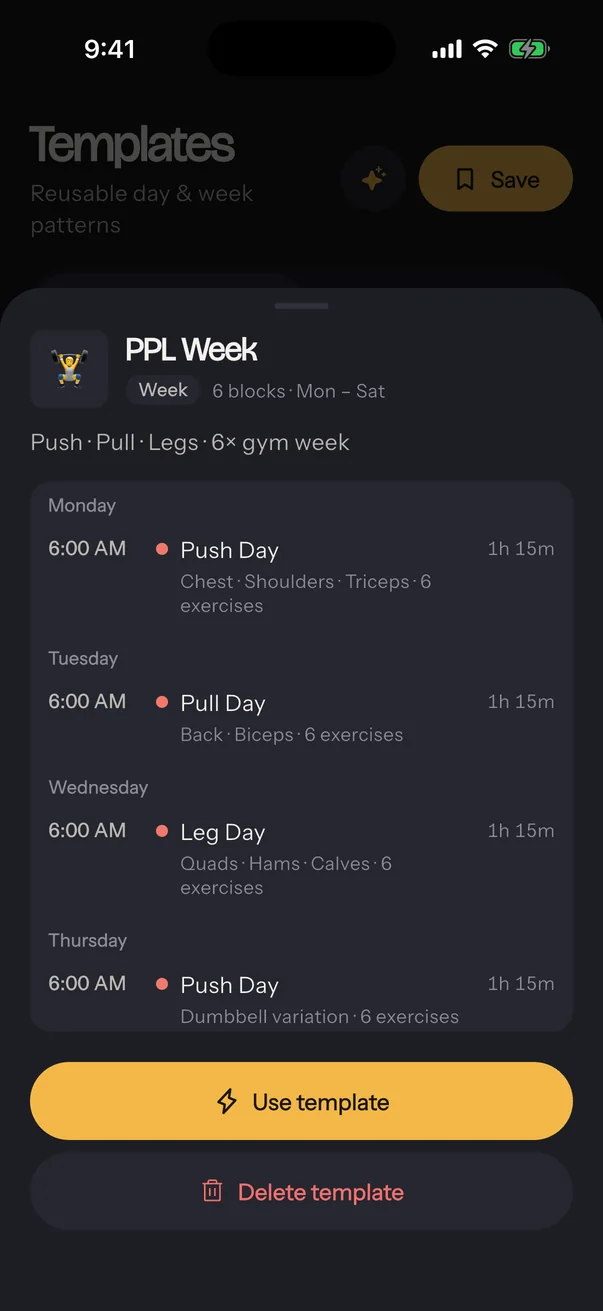
A template is a day or a week you can apply again and again.
Your library holds your templates. Gallery holds starters you can add to your library: a programmer day, a morning routine, an evening wind-down, an ADHD-friendly day, a lean bulk week, a cutting week, a student sprint week and a creator week. Every starter comes with its insides: gym days list their exercises with sets and weights, checklists their items, routines their steps, projects their first tasks.
Use. Tap Use on a template. Pick the day, or any day in the week for a week template. The sheet lists every block that will be added and warns about overlaps with your plan. If the day already has some of the blocks, you can skip those.
Customise blocks. Open this fold to set a repeat rule and a reminder for every block the template adds, with the same controls as the editor. "As saved" keeps what the template has.
Save your own. The Save button on the Templates tab snapshots today or this week as a new template, children included. Done states are cleared so the template is always fresh.
Delete a template from its details sheet. Gallery templates cannot be deleted; remove the copy from your library instead.
Sol
The cat: what it does, where it appears, how to turn it off
Sol is Tempo's mascot, a small ginger cat. It is not a chatbot and it does not cheer. It notices things and says one line.
Where Sol appears.
- At the top of Today with the daily brief.
- On a gym block before your first set, with a nudge or a coaching suggestion, and again when every set is logged.
- In the weekly review with an insight.
- In the New block sheet, offering to read what you typed.
- In the assistant as the avatar, thinking while a reply is on the way.
Moods. Sol has ten poses: neutral, thinking, happy, win, curious, determined, rest, sleepy and oops. The pose follows what Sol is saying. Sol blinks, breathes, swishes its tail and glances around while it is on screen, nods when thinking, and drifts off when it is late.
Lines. Sol's lines come from your own data first: counts, times, weights. When the assistant is set up, Sol asks it to word the line, and the assistant also picks the mood. Without the assistant Sol still speaks, just more plainly.
Turn it off. Settings, Personalization, Sol. The cards and the avatar then fall back to the sparkle icon, and reduce motion in your phone's accessibility settings stops every animation.
The assistant
Set up with your OpenAI key, what it can do, how approval works
Tempo has a built-in assistant that can read your plan and change it. It runs on your own OpenAI API key, so it costs you only what OpenAI charges, and Tempo has no server in between.
Set up. Settings, AI assistant, then paste a key from platform.openai.com. Pick a model. Fast models answer in a second or two; reasoning models take longer and think harder. Test the connection on the same screen.
Consent. The first chat asks you to agree that your messages and the parts of your plan the assistant reads are sent to OpenAI. You can withdraw this in AI settings at any time. Health data, routes and your location are never sent.
Chat. The sparkle button on Today opens the chat. Ask for a plan, a routine, a workout, a reschedule, or a question about your week. Try the suggestion chips on the empty chat. You can keep several conversations and switch between them from the menu.
Tools. The assistant can read your blocks, templates, streaks and stats on its own. Anything that changes data, such as creating, editing or deleting a block, applying a template, or adding a gym set, shows a permission card first. Nothing changes until you tap Approve. Deny and it moves on.
From a block. Open the assistant from inside a block and it focuses on that block.
Safety mode and system prompt. AI settings let you turn off write tools entirely, see the token cost of each reply, and rewrite the assistant's instructions.
Rate limits. New OpenAI accounts allow only a few requests a minute. If you see a rate limit message, wait a moment or add credit to your OpenAI account.
Apple Health and Health Connect
What syncs, when, and what Tempo never does with it
Tempo can read four things from Apple Health on iPhone or Health Connect on Android: body weight, steps, sleep and workouts. It never writes anything back.
Connect. Settings, then Connect Apple Health. The system sheet asks which types Tempo may read. Apple does not tell apps what you chose, so if a type stays empty after a sync, open the Health app, go to your profile, then Apps, then Tempo, and check it there.
What a sync does.
- Body weight goes into a Body weight tracker, one value per day, the last weigh-in of the day.
- Steps go into a Steps tracker as the day's total. The total comes from the Health app's own daily figure, so the phone and a watch are not counted twice.
- Sleep goes into a Sleep tracker in hours, attached to the morning you woke up. Asleep time is used when the source records stages; time in bed fills nights that have nothing else.
- Workouts mark blocks done. A strength or conditioning workout marks a gym block scheduled that day. A walk, run, hike or ride marks an outdoor block that day. Yoga, swimming and sport mark a gym block when the day has no outdoor block.
If you have no tracker for a signal, the first sync creates one from the presets and puts it in your Inbox. Rename it if you like; Tempo finds it again by the words weight, steps or sleep in the title.
When it runs. Automatically about every six hours while you use the app, and whenever you open the app after six hours away. Sync now in Settings runs it at once for the last 30 days and tells you what changed.
Privacy. Health values stay on your phone. They are never sent to the assistant, never backed up anywhere by Tempo, and never used for anything except your own trackers and done marks. Disconnect in Settings stops the automatic sync; turning off access in the Health app stops Tempo reading at all.
Search
Find any block by title, notes or tag
The magnifier on Today opens search. Type part of a title, a word from the notes, or a tag, and matching blocks appear with their day and time. Tap one to open it. Search covers every day, past and future.
Settings
Everything you can change, group by group
Notifications. Turn block reminders on, set the default reminder for new blocks, and set quiet hours.
Timers and alerts. Alert sound, play in silent mode, vibration, a notification when a timer ends in the background, and workout cues.
Personalization. Dark, light or system theme. 12-hour or 24-hour time. A colour for each block type. Sol on or off.
Assistant. API key, model, safety mode, token cost display, consent, and the system prompt.
Apple Health or Health Connect. Connect to read weight, steps, sleep and workouts into your trackers, and to mark gym blocks done on days you trained. Tempo never writes to Health.
Backup. Export every block, template and setting to a file you can keep anywhere. Import restores it.
About. This guide, the privacy policy, the terms of use and the open-source licences. The terms explain that Tempo is a planner, not medical or fitness advice, and that AI answers can be wrong.
Clear all data removes everything from the phone. Because nothing is stored elsewhere, that is a complete reset.
Tips
Small things that make the app faster
- Type the whole plan into New block and let Sol read it. "Dentist Thursday 2pm 45 min remind me an hour before" becomes a finished block in one tap.
- Long press the plus button to ask the assistant for a whole day at once.
- Swipe right to finish a block without opening it.
- Use the Inbox for thoughts you do not want to schedule yet, then drag them into the day when you are ready.
- Save a good day as a template at the end of it, while it is still on screen.
- Let Sol's evening card move what is left to tomorrow, so the next morning starts clean.
- On a gym block, say yes when Sol offers the next plate. The weight is written into every planned set.
- Minimise the workout player between sets and keep using the phone; the rest timer follows you.
- Tap a coloured square on the year heatmap to revisit that day.
- Export a backup before switching phones.
Nothing in the guide matches that. Try another word, or ask us.